Sourceprint/MacDM

MacDM Installation Guide
MacDM is a fast, segmented download manager for Apple Silicon Macs. Because the app isn't Apple-notarized yet, the first launch needs a few extra steps. Follow the steps below — it all takes about a minute.
Download MacDMFree · macOS 14+ · Apple Silicon
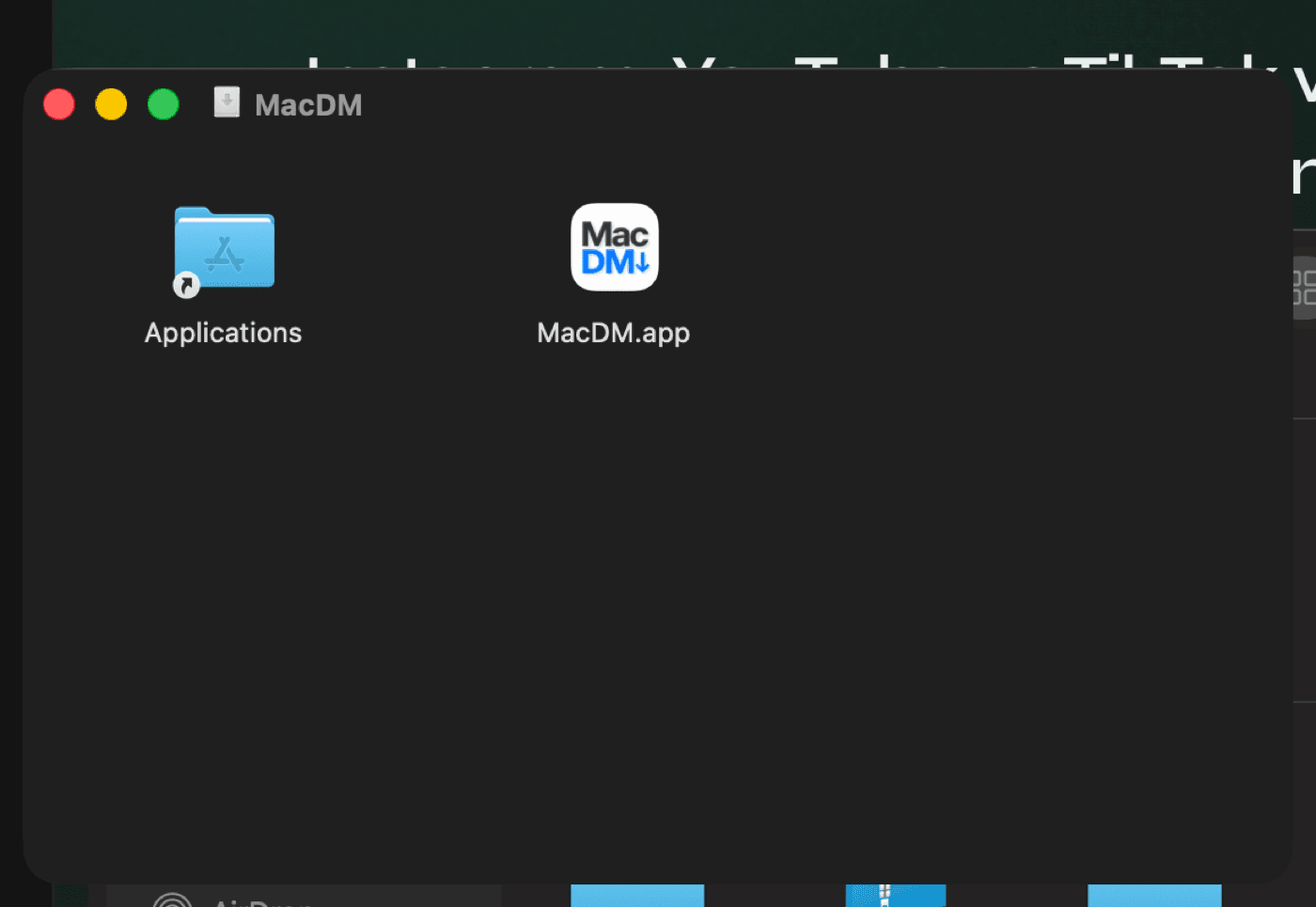
Open the DMG and drag to Applications
Double-click the downloaded MacDM.dmg. In the window that opens, drag the MacDM icon onto the Applications folder.
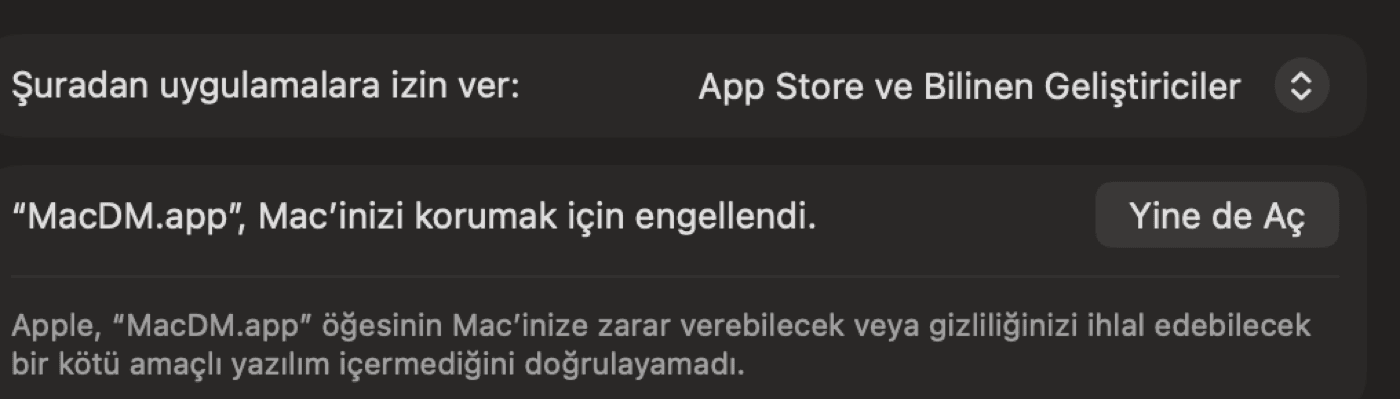
First launch: go to System Settings
The first time you double-click the app, macOS shows a security warning. Open System Settings > Privacy & Security, scroll to the bottom, and click "Open Anyway" next to MacDM.
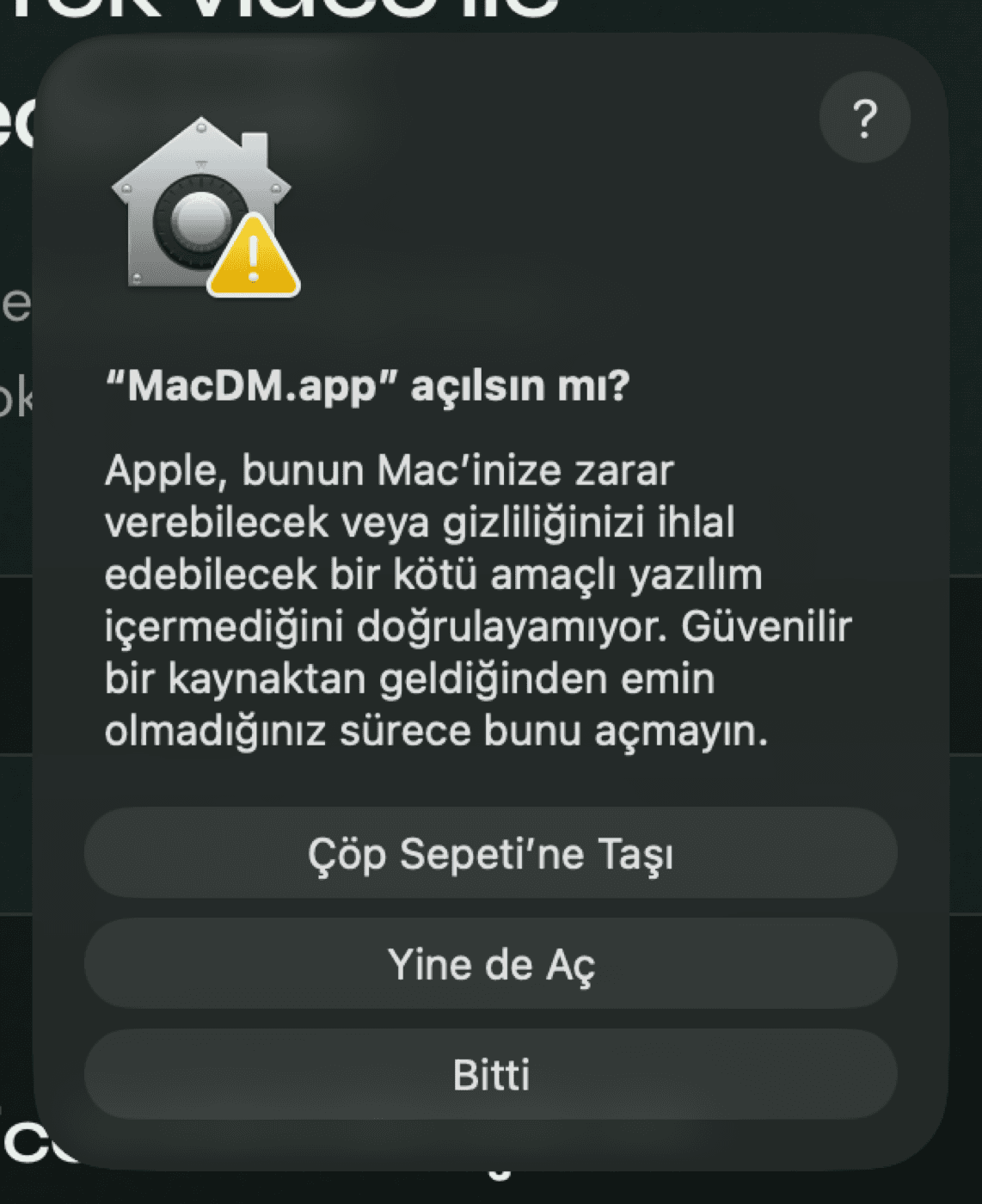
Confirm opening
In the dialog that appears, click "Open Anyway" again. You only need to confirm this on the first install.
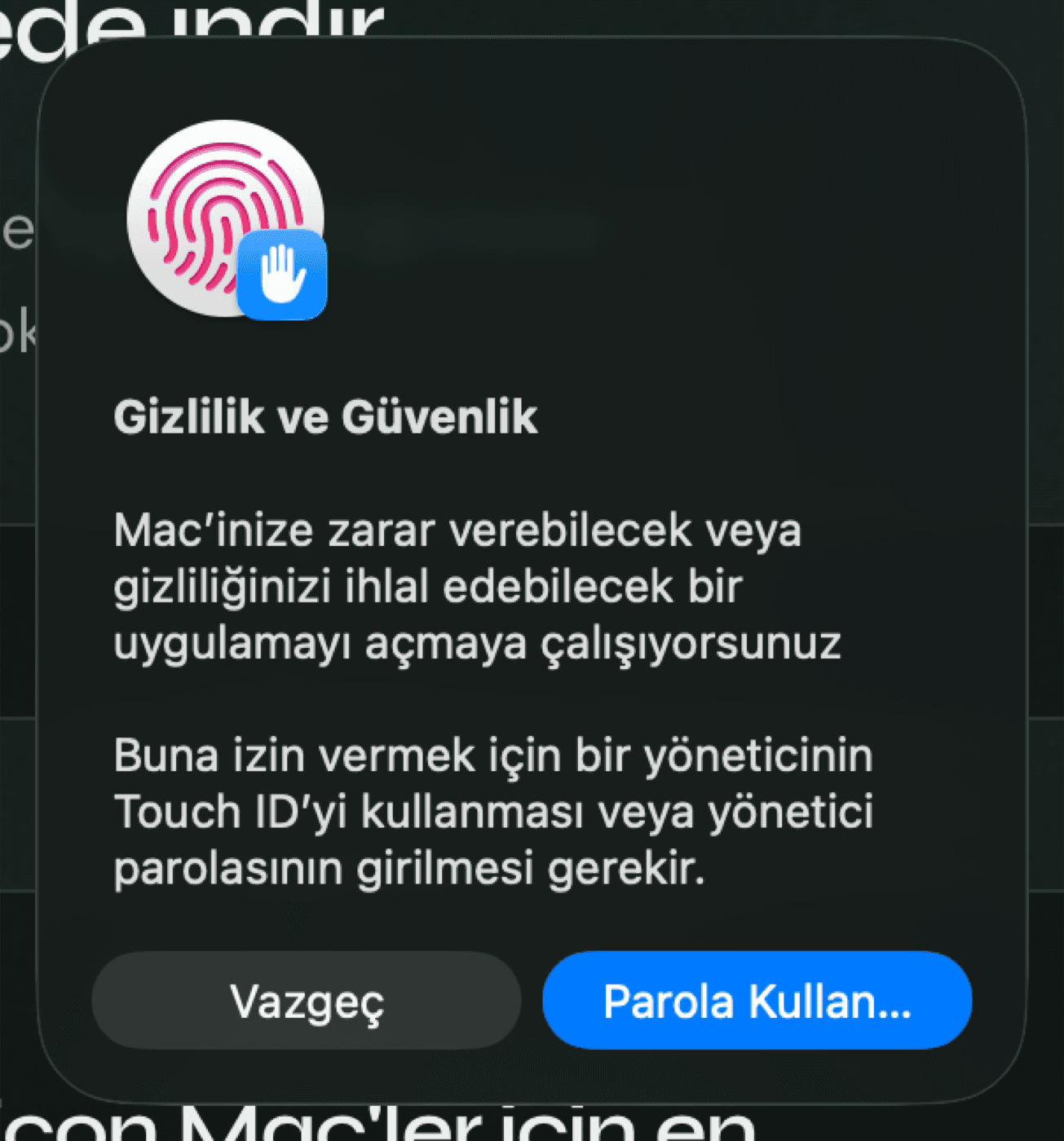
Authenticate with Touch ID or password
macOS asks for Touch ID or your Mac password to approve. Once confirmed, MacDM opens and you won't be asked again.
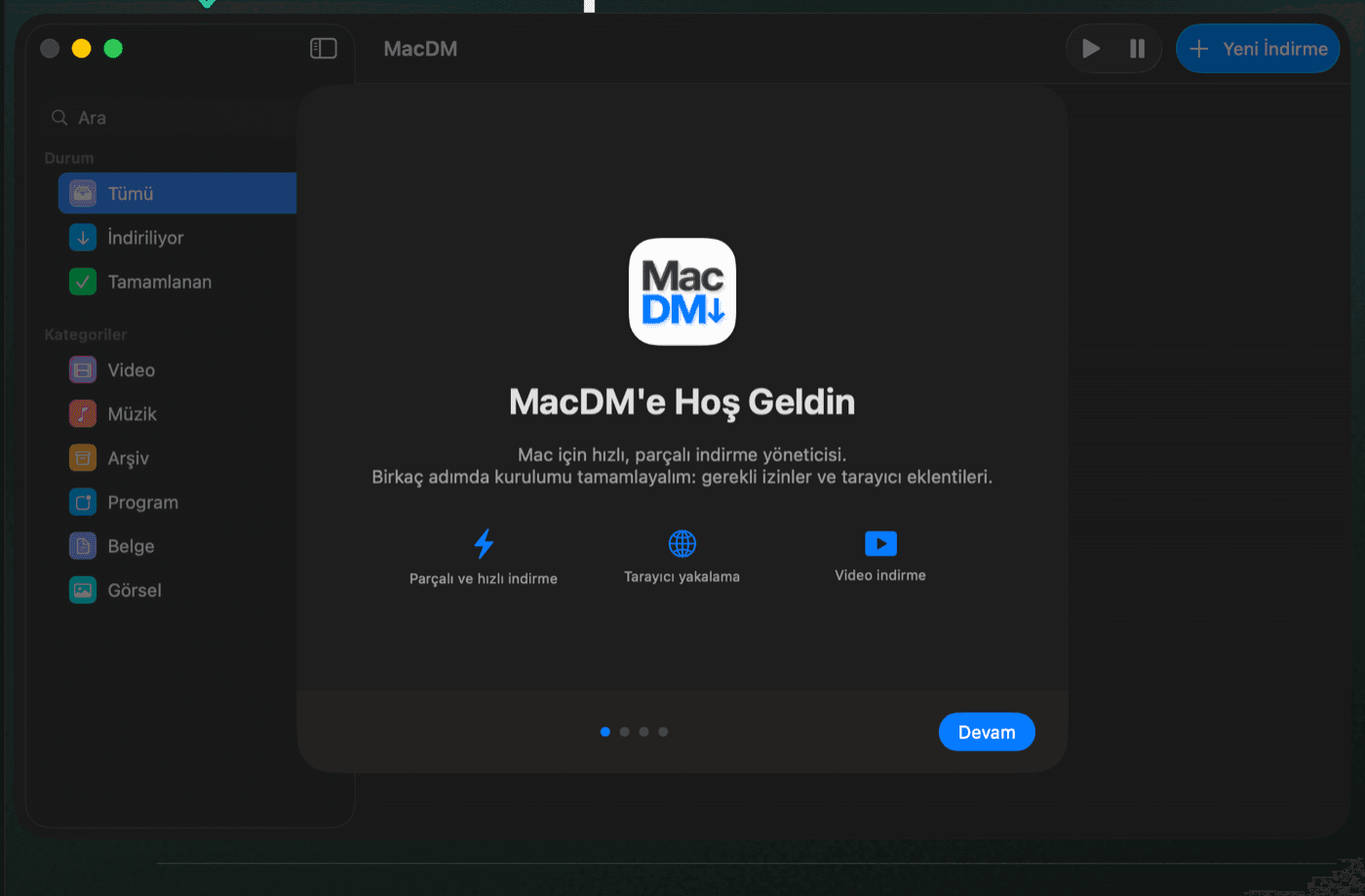
Setup wizard: Welcome
On first launch MacDM greets you with a short setup wizard. Click "Continue" to proceed.
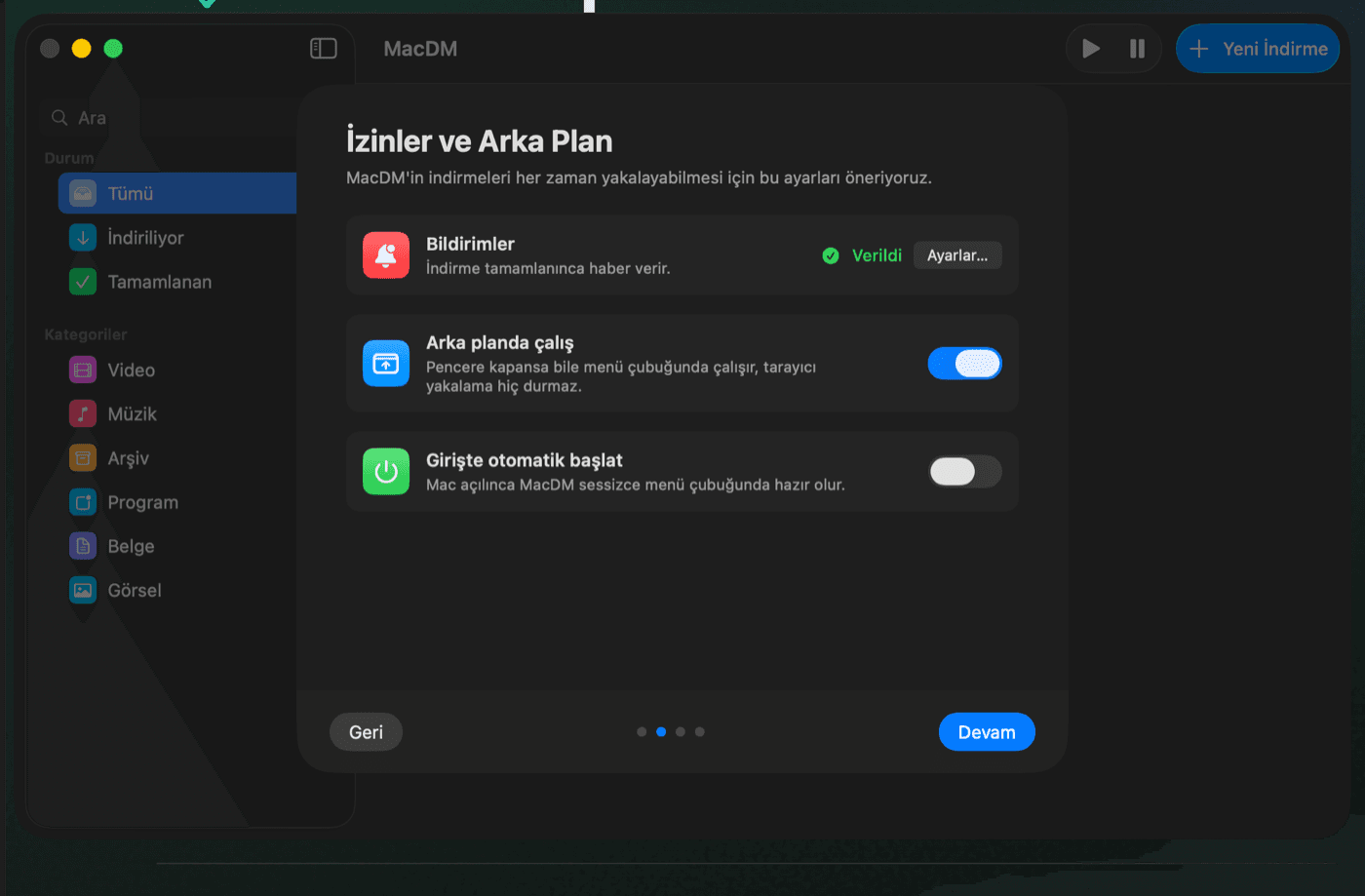
Permissions and background
Allow notifications and keep "Run in background" on, so downloads keep being captured from your browser even when the window is closed.
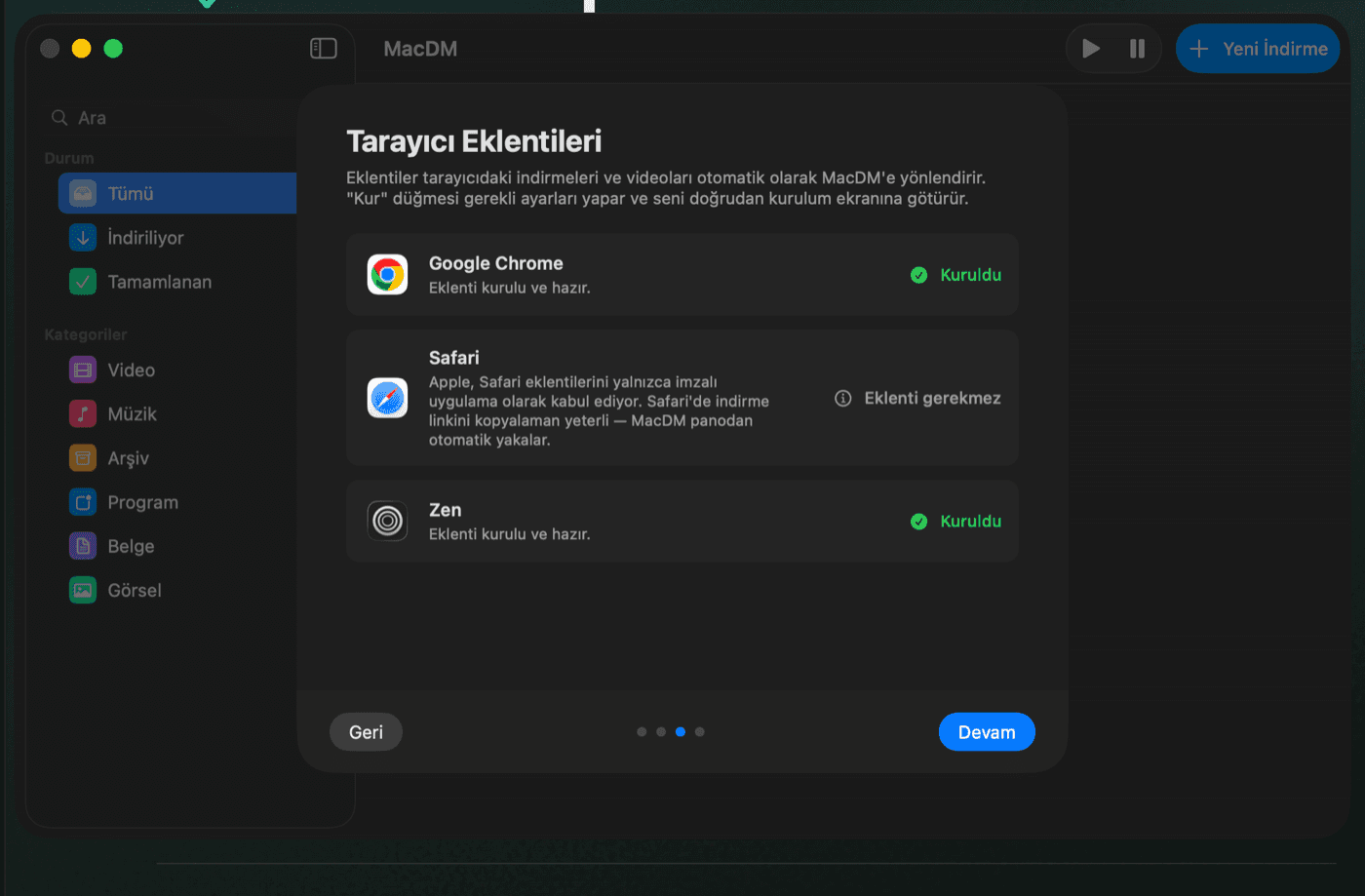
Browser extensions
Click "Install" next to your browser. MacDM configures the required settings and installs the extension; installed ones show a green checkmark. Safari needs no extension — clipboard monitoring is enough.
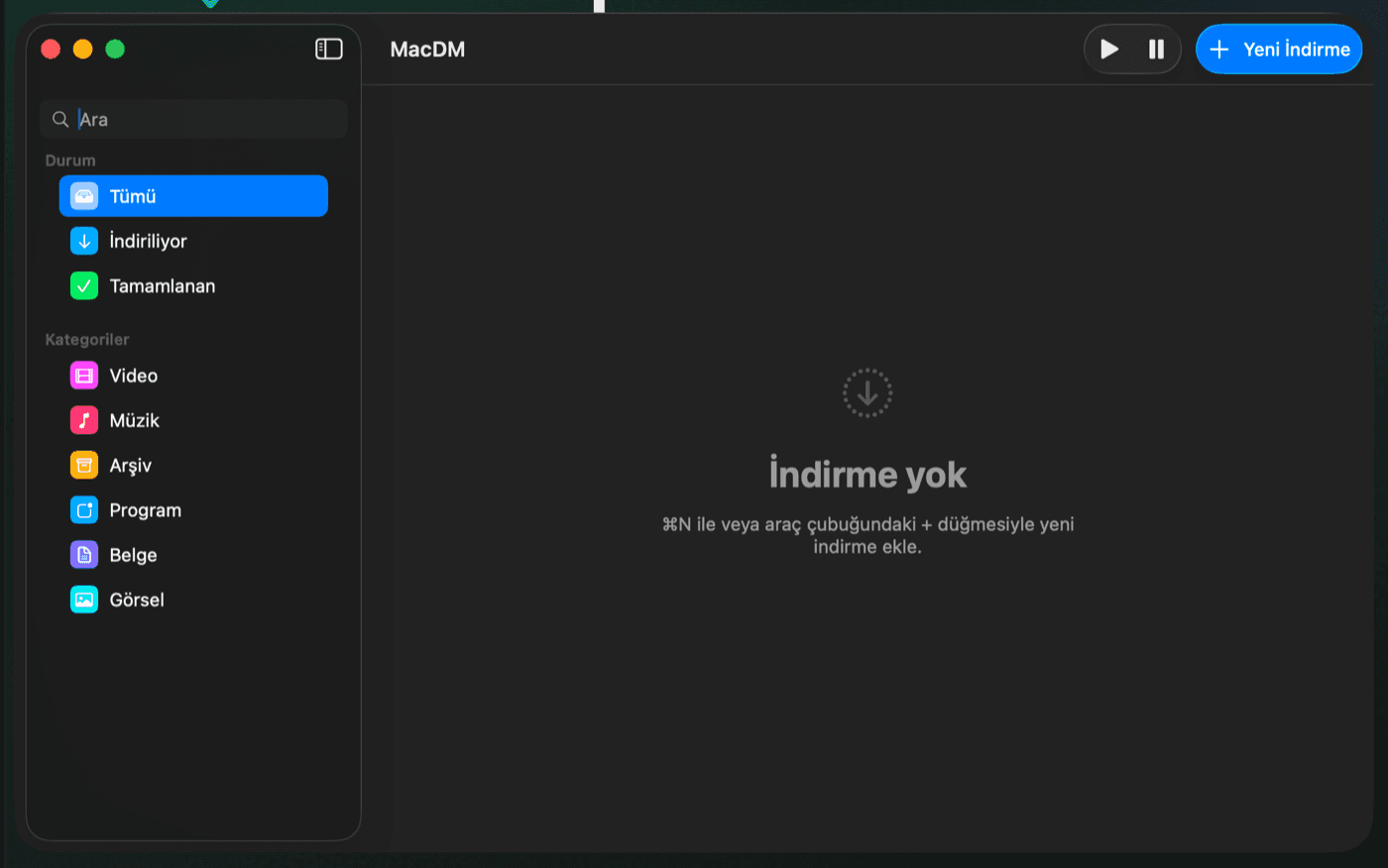
You're ready!
Setup is complete. Every download you start in your browser now flows into MacDM, and you can paste a link to grab videos, files or torrents. The app waits in your menu bar at all times.
Why these extra steps?
MacDM is written by an independent developer and hasn't gone through Apple's paid notarization yet. These steps are only needed once, on the first install; the app's own updates happen silently.
If you get stuck, check the in-app Help section (⌘?).